
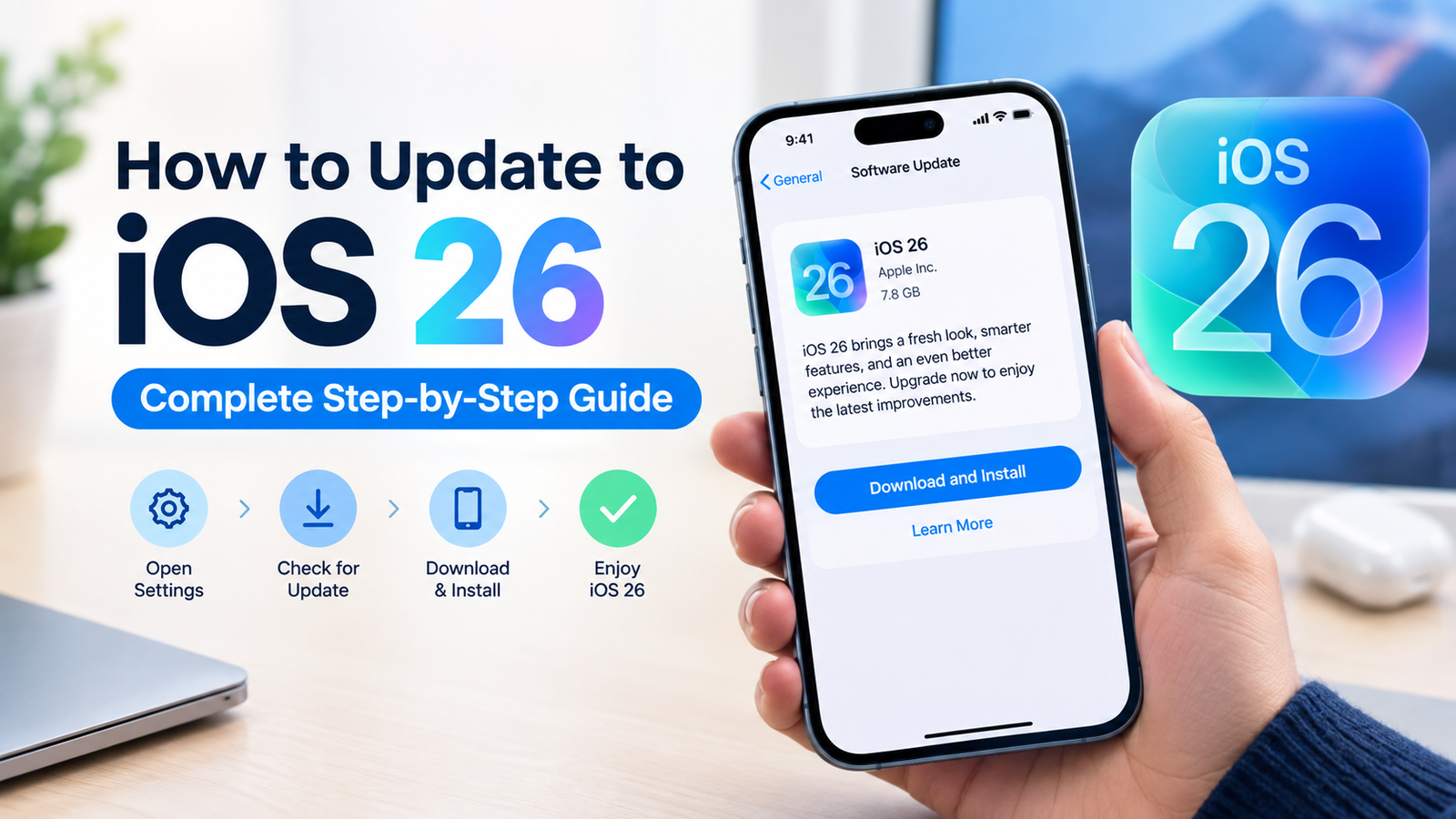
How to update to iOS 26? If you’re looking to learn what it takes to upgrade your phone to iOS 26 and beyond, you can do the process from your iPhone. Apple offers an inbuilt software update feature that allows you to search for the most recent version compatible with your phone install it, download it, and then install it without having to connect your device to computers.
Before you get started making any changes, make sure you have prepared your iPhone in a proper manner. A backup provides you with an additional layer of security as well as a reliable connectivity to Wi-Fi and adequate battery power will make the installation process easier.
Apple has released a variety of updates to its iOS 26 Series, which means that your iPhone might come with a more recent iOS 26 version instead of the initial version. The version available will depend on the iPhone model and the current version of software.
What You Need Before Updating to iOS 26
Before you install the update, make sure you check some things to make sure you have the correct iPhone.
1. Check Your iPhone Model
Not all iPhone runs iOS 26. Apple is able to run iOS 26 on iPhone 11 and later models and those running the newer iPhone SE and later. The models supported are those from the iPhone 11 series, iPhone 12 series, iPhone 13 series, iPhone 14 series, iPhone 15 series, iPhone 16 series, iPhone 17 series, iPhone Air and the other supported iPhone SE models.
To check your model:
- Open Settings.
- Tap General.
- Tap About.
- Find the model’s information.
If your iPhone isn’t compatible with iOS 26, the update won’t be listed as an installation option.
2. Back Up Your iPhone
Apple suggests backups of your iPhone prior to installing new software. You can utilize iCloud or computers to create backup.
Backups can help you retrieve important data in the event of an unexpected incident occurring in the course of an upgrade.
3. Connect to Wi-Fi and Power
It is recommended to connect the iPhone to an internet connection that is reliable and best of all, connect it to a charger prior to beginning the installation.
An important iOS update may take a while to download and install, therefore making sure you keep your iPhone connected to the power source will stop the battery from deteriorating while the process is taking place. Apple recommends connecting your device to the power source and internet while updating wirelessly.
How to Update to iOS 26 on iPhone
When your iPhone is set to go, you can begin the upgrade from Settings. Settings app.
Step 1: Open Settings
Locate and open and open the settings App for your iPhone.
Step 2: Tap General
Scroll down, and then choose General.
Step 3: Open Software Update
Tap Software Update.
Your iPhone will scan the Apple update servers and show your current iOS version, along with any updates available.
Step 4: Download and Install the Update
In the event that iOS 26 or a newer compatible iOS 26 release appears, select Download and install.
Follow the steps by your phone’s screen. Your iPhone might prompt for your password prior to proceeding.
Step 5: Let the iPhone Complete the Installation
When the download has finished after which your iPhone will begin to prepare and install the update. The device could restart numerous times during the process.
Do not shut off the iPhone or stop the installation process unless it specifically instructs you to do this.
Apple’s normal update process follows the similar process: Settings > General > Software Update > Download and install.
How to Turn On Automatic iOS Updates
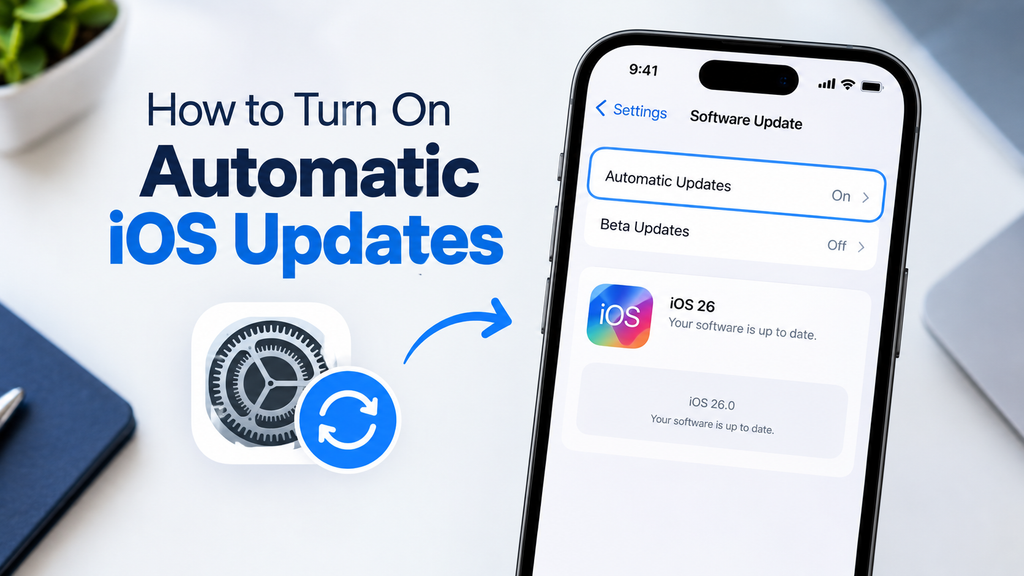
You don’t have to do it manually every next update. The iPhone will download and set up updates that are compatible in a seamless manner.
To enable automatic updates:
- Open Settings.
- Tap General.
- Select Software Update.
- Tap Automatic Updates.
- Select the most suitable automatic update option.
Apple offers the Automatically Install option to install updates over the course of the night in the event that the iPhone is charged as well as connected to WiFi. You can also turn on Auto Download If it is your preference to download the update, then install them later.
Automated updates will help you keep your iPhone current without constantly checking for updates on Software Update menu.
What If iOS 26 Does Not Appear?
If you are unable to detect iOS 26 on your iPhone Do not think that the update is not available immediately.
First, check your iPhone model. Your device must support iOS 26.
Then, ensure that you’ve installed the most recent software version for your setup. Apple says on the screen for updating that it displays the software that is compatible with your device and the current state of the software.
Also, make sure to check these things:
- Connect to an efficient Wi-Fi network.
- Connect the iPhone into the power.
- Be sure to have plenty of storage space available.
- Restart your iPhone and then check Software Update again.
- Make sure that your internet connection is working in a proper manner.
- Provide the server with update a time in case Apple’s servers are full.
If the update is still not show up, Apple provides additional troubleshooting guidelines on iPhone Software updates.
Can You Update to iOS 26 Using a Computer?
Yes. If you can’t update wirelessly, then you must make use of the Mac or Windows computer.
Attach your iPhone to your computer using the help of a cable. If you have an Mac operating macOS Catalina or later, start Finder and choose Your iPhone in the left-hand sidebar. If you are using the older Mac platforms and Windows, Apple provides the option of using iTunes.
Once the connection is established, choose the option to search for updates. If there is a compatible update then select to update then follow directions.
Apple lists computer-based updates are a viable alternative if an update doesn’t appear or isn’t able to be installed on the iPhone.
What does iOS 26 Add to iPhone?
The update with iOS 26 does more than change the version number for the software. Apple introduced a new interface that is based on its Liquid Glass design, with improvements across all of the Lock Screen, Home Screen apps, navigation and controls.
The update also enhances Apple Intelligence features on supported devices. Apple highlights features like Visual Intelligence, Live Translation as well as additional actions that are intelligent in Shortcuts. Camera, Messages, Phone, Photos, Wallet and CarPlay are also upgraded.
Remember that the features available are contingent on the iPhone model or region, language and even the carrier.
If you’re interested in how Apple’s next-generation iPhones could benefit from improved performance and AI capabilities, read our guide to the iPhone 18 A20 Pro chip, performance, and features.
Should You Update Your iPhone to iOS 26?
For compatible iPhones installing software updates is generally a good idea since Apple utilizes them to add new features, correct issues and make security improvements.
However, you must be sure to check the specific version for your particular device instead of thinking that each iPhone has the same features.
Apple has been releasing updates for the iOS 26 family, including versions that focus on bug fixes security updates, bug fixes, and other features.
If you’re interested in researching Apple’s latest iPhone range and how its models compare, review our guide to iPhone 18 vs. iPhone 17 for additional details.
Frequently Asked Questions
How do I upgrade to iOS 26?
Open Settings > General > Software Update. If you see a compatible iOS 26 update appears, click Download and install to follow directions for your iPhone.
Which iPhones will work with iOS 26?
Apple is compatible with iOS 26 with iPhone 11 and newer models in addition to 2nd-generation iPhone SE and later supported SE models. The supported range includes iPhone 12 13, 14, 15 16, 17 families, as well as other models compatible with iOS 26.
Do I require Wi-Fi in order to upgrade iOS 26? iOS 26?
Utilizing Wi-Fi is the most common method of installing for an iOS update. Make sure you connect your iPhone to an internet connection and supply power prior to beginning the installation.
Do updates to iOS 26 erase my apps and photos?
An ordinary iOS updates to software is designed to protect your settings and data. It is, however, Apple recommends creating a backup prior to updating so that you have a backup of all your important data.
What’s wrong? Why can’t I be able to see iOS 26 available on my iPhone?
Your iPhone might not be compatible with iOS 26. Or, your current software might require an update compatible with iOS 26 first. Make sure to go to settings > general > software update and verify you are on the right track. iPhone model is listed in Apple’s compatibility list.
How can I upgrade my iPhone with having a computer?
Yes. You can directly update your iPhone via settings > general > software update. Computers can be used as an alternative in the event that you are unable to finish your wireless upgrade.
Final Thoughts
Understanding the steps to upgrade your iPhone to iOS 26 is straightforward. Begin by determining if your iPhone is compatible with the software, make backups then connect your phone to Wi-Fi and power and then go to settings > general > software update.
Once you have done that the iPhone will show the most current compatible software that is available to your iPhone. Follow the instructions on screen and let the installation complete without interruption.
Since Apple continues to release updates in this iOS 26 Series, making sure to check Software Update regularly is the most effective way to ensure that you keep your iPhone up to date with the most recent version that is compatible with your device.
One thought on “How to Update to iOS 26: Complete Step-by-Step Guide”