
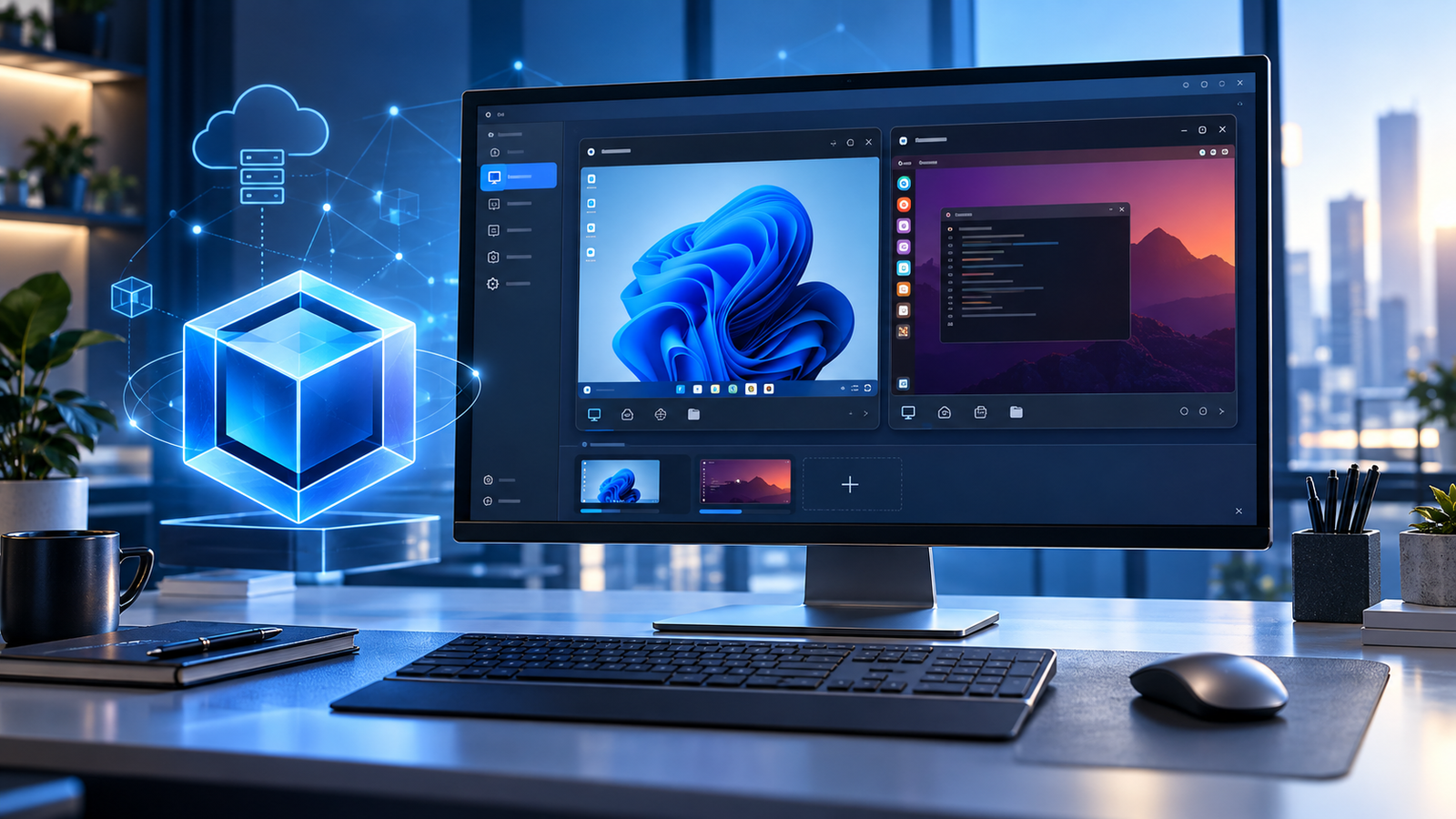
When you wish to install another operating system while keeping your existing OS intact, vbox software comes in handy. VirtualBox, as it is alternatively called, allows for creating virtual machines on your computer. The software can be used by you to try out Linux or other operating systems, use suitable programming tools or develop your technical skills without purchasing an additional physical computer.
VirtualBox will be helpful for students, programmers, IT specialists, and tech-savvy people in general even in 2026.
This article will tell you what vbox software does, how it functions, which features to pay attention to, where to download it from safely, and what to consider before installation.
What Is Vbox Software?
Vbox software is one of the names used in the search for Oracle VM VirtualBox, which is an open-source virtualization software created by Oracle Corporation. VirtualBox helps your computer create a virtual machine (VM) that acts as a standalone computer.
For instance, you can use a computer running on Windows to create a virtual machine and install any Linux OS compatible with your virtual machine. You will be able to change from your current desktop to the virtual machine without shutting down your computer.
The virtual machine will have its own operating system, storage space, memory, and networking.
The basic Vbox software is licensed under the GNU General Public License v3. Review the licensing terms for additional components before using them commercially. You can find the available packages on the official VirtualBox download page.
How Does Vbox Software Work?
VirtualBox utilizes the physical hardware of your computer and creates virtual hardware for each guest OS. In this case, your operating system is considered the host OS, and the guest OS is an operating system of the virtual machine.
And here is how you can do that:
- VirtualBox installation: Get the correct package according to your operating system.
- Setup virtual machine: Provide the name and the type of guest OS.
- Resource allocation: Provide the number of virtual CPU cores, memory, and space.
- Installation media mount: Get the relevant ISO installation file for the guest OS.
- Install guest OS: Launch the VM and proceed with installation.
- Use your virtual environment: Run the VM to test your applications or use another OS.
Remember that your virtual machine consumes the resources of your computer. Thus, the efficiency of your virtual environment depends on your hardware and configuration. To have better results, leave some memory and processing power for your host system.
Understanding how software completes tasks can also help you explore how AI automation works, including how intelligent systems process information and perform actions within defined workflows.
Key Vbox Software Features in 2026
VirtualBox provides several features that help users manage virtual environments. Availability can vary by version, host platform, and guest operating system.
1. Cross-Platform Virtualization
VirtualBox provides the host software packages for the supported versions of Windows, Linux, and macOS operating systems, as well as Solaris x86 operating systems.
This, however, does not guarantee that all the guest operating systems will run on all the computers as a guest operating system. Ensure you consult the documentation before making your choice.
2. Virtual Machine Snapshots
Snapshots allow one to capture the state of a virtual machine at a specific moment. Before performing any new installations of unknown applications or changing system settings, one can simply make a snapshot.
They are especially useful for programmers and students who are always working with different operating systems. Snapshots should not be considered a backup solution.
3. Shared Folders and Clipboard Integration
VirtualBox can allow sharing between the host and guest machines through the shared folder and clipboard capabilities.
However, some capabilities depend on the Guest Additions installation within the guest machine. Be careful when configuring sharing, particularly with unknown software, since sharing may diminish isolation.
4. Virtual Networking
VirtualBox supports various types of networking like NAT, bridged, and host-only networking.
NAT usually gives the ability of accessing other networks from the guest machine via the host machine. With bridged networking, the machine is connected to the network as an individual unit, whereas host-only networking aids in creating a private environment for tests.
Select the networking type according to your task.
5. Flexible Storage and Resource Settings
Each VM’s virtual disk, memory, processor, and other hardware can be configured individually. Dynamically allocated virtual disks can expand in size according to the amount of data added on them depending on their capacity and host storage.
Such configurations make it possible for the vbox software to serve various purposes, ranging from experimenting with Linux to development purposes. But too many resources might affect their performance.
What Is New in Vbox Software in 2026?
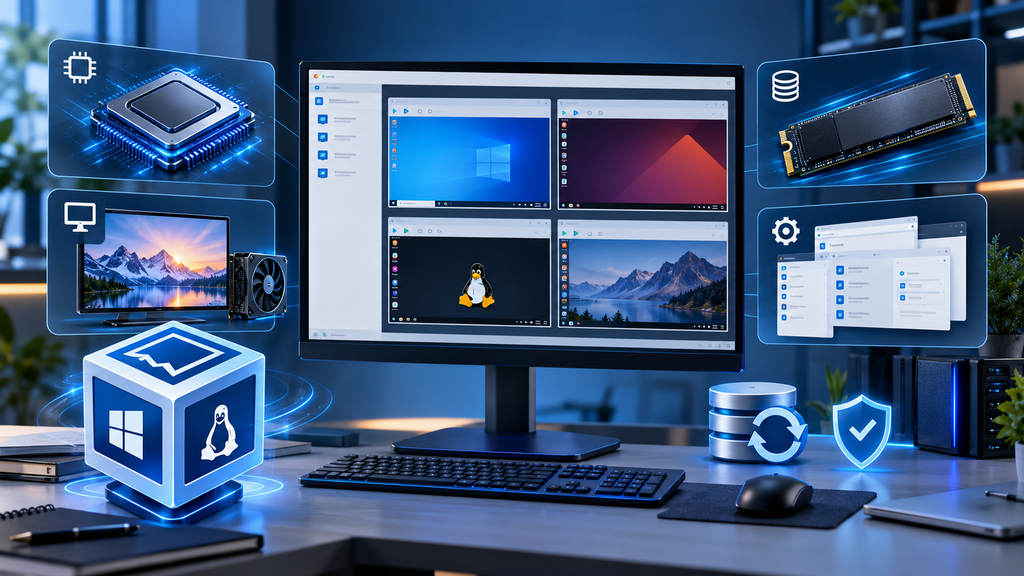
Instead, refer to Oracle’s download website and release notes for any recent updates and additions.
Changes have been made in VirtualBox 7.2 that relate to virtualization using ARM, video acceleration in Linux, an open-source NVMe storage controller, and the user interface.
Whether particular features are available depends on both the host machine used and the configuration of the guest.
You can review the VirtualBox release information to understand the changes introduced in different versions.
Before updating to the new VirtualBox version, it is recommended to check the compatibility of virtual machines with it. It is advised to make backups and update the Extension Pack if necessary.
How to Download and Install Vbox Software
Always make sure that you get your vbox software only from the official Oracle website or the VirtualBox section of the official website.
Do the following things:
- Open the official VirtualBox download page.
- Click on the installer of your respective host operating system.
- Download the file and check its checksum whenever possible.
- Install it and note down the required permissions and networking components.
- Install the VirtualBox successfully and launch it.
- Download the compatible operating system ISO from its official source.
- Create a virtual machine, assign resources, and install the guest operating system.
Downloading VirtualBox does not automatically provide a Windows or Linux installation image. You may need to obtain that image separately and follow its licensing requirements.
System Requirements and Performance Tips
Your computer requires adequate resources to ensure that both the host and guest are able to function efficiently.
Some tips which will help boost performance include:
- Ensure that your computer has hardware virtualization enabled when possible and available.
- Use only the memory and processing power required by your workload.
- Have your virtual disks stored in a reliable disk with adequate storage.
- Have your Guest Additions installed whenever you require better integration.
- Close applications consuming high amounts of resources when using high-end virtual machines.
- Keep your VirtualBox and guest operating systems up-to-date.
If a particular VM works slowly, look at the usage of memory, processor, disk space, and settings of the guest OS.
Is Vbox Software Safe to Use?
VirtualBox is an actual virtualization software program, but the security depends on the way you use it. Get the installers from legitimate sources, apply all security patches, and do not allow any additional rights for shared folders and device usage.
A virtual machine is not an ideal security zone. Various risks are possible because of malware and improper configuration, especially when you use shared folders, clipboard sharing, USB pass-through, or bridged network mode.
In case of analyzing any suspicious programs or performing some dangerous tests, create a special environment and use required security tools. Do not trust a VM for protection of your files or system.
Advantages and Limitations of Vbox Software
Advantages
- Free and open-source base package.
- Supports a range of host platforms.
- Useful for learning, testing, and development.
- Offers snapshots, virtual networking, and configurable resources.
- Lets users experiment without installing another operating system directly on their main machine.
Limitations
- Performance depends on available hardware and configuration.
- Some guest operating systems require extra setup.
- Advanced integration features may require additional components.
- Compatibility varies across hardware architectures and operating systems.
- Virtual machines consume storage, RAM, and CPU resources.
Developers who want to explore other digital solutions can also review these AI tools and features for additional ideas related to software, research, and productivity.
Frequently Asked Questions
1. Is Vbox Software Free in 2026?
Yes. Oracle distributes the VirtualBox base package under GPL version 3 for supported platforms. Review the separate licensing terms for the Extension Pack and other components.
2. What Is Vbox Software Used For?
People use it to run virtual operating systems, test applications, learn Linux, build development environments, and practice system administration.
3. Can I Run Linux on Windows Using VirtualBox?
Yes. Install VirtualBox on a compatible Windows host, download a Linux ISO from its official distributor, create a VM, and follow the installation process.
4. What Is the Latest Vbox Software Version?
The latest version can change as Oracle releases updates. Check Oracle’s official download page for the current version and compatible installer before downloading.
5. Does VirtualBox Need a Powerful Computer?
Not always. Lightweight guest systems can run on modest hardware, but demanding workloads need more RAM, processing power, and storage. Check the requirements for your intended guest OS.
6. Is VirtualBox Better Than Dual Booting?
It all depends on your requirements. You will be able to run a guest operating system along with the host using VirtualBox, while dual booting will enable you to use only one operating system at once directly accessing the hardware.
Final Thoughts
The vbox software is quite helpful for testing different operating systems, running programs and creating an environment for developing virtual machines on one computer. The flexibility of VM configuration, as well as other features such as snapshots and networking capabilities, makes this program interesting for both inexperienced and professional users.
Before downloading, you have to check the newest version, find out if it is compatible with your hardware and get an installer from Oracle resources. Using VirtualBox wisely, you can make it a great technical helper.